LayoutStart / LayoutEndImportantEnableSaintsEditorbefore using
LayoutStart allows you to continuously grouping fields with layout, until a new group appears. LayoutEnd will stop the grouping.
LayoutStart(name) is the same as Layout(name, keepGrouping: true)
For LayoutStart:
string groupBythe grouping key. Use/to separate different groups and create subgroups.ELayout layout=ELayout.Verticalthe layout of the current group. Note this is aEnumFlag, means you can mix with options.float marginTop = -1fadd some space before the layout.-1for using default spacing.float marginBottom = -1fadd some space after the layout.-1for using default spacing.float paddingLeft = 0fadd space to the left of the layout content. Negative value supportedfloat paddingRight = 0fadd space to the right of the layout content.
For LayoutEnd:
string groupBy=nullsame asLayout. Whennull, close all existing groups.float marginTop = -1f,float marginBottom = -1f,float paddingLeft = 0f, andfloat paddingRight = 0fupdate the layout being closed.
It supports ./SubGroup to create a nested subgroup:
ELayout Options are:
VerticalHorizontalLabelFielduse Unity's label-input style layout. The first element will be used aslabel, and the rest asinputBackgrounddraw a background color for the whole groupTitleshow the titleTitleOutmaketitlemore visible. Add this will by default addTitle. OnIMGUIit will draw a separator between title and the rest of the content. OnUI Toolkitit will draw a background color for the title.Foldoutallow to fold/unfold this group. If you have noTabon, then this will automatically addTitleCollapseSame asFoldoutbut is collapsed by default.Tabmake this group a tab page separated rather than grouping itTitleBox=Background | Title | TitleOutFoldoutBox=Background | Title | TitleOut | FoldoutCollapseBox=Background | Title | TitleOut | Collapse
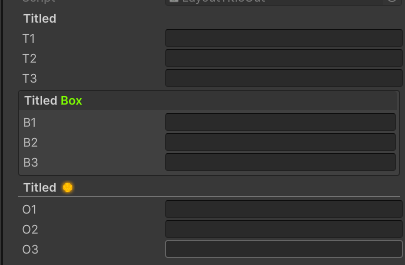
Example of title:
[LayoutStart("Titled", ELayout.Title)] public string t1; public string t2; public string t3; [LayoutStart("Titled <color=Chartreuse>Box", ELayout.TitleBox)] public string b1; public string b2; public string b3; [LayoutStart("Titled<icon=d_orangeLight/>", ELayout.TitleOut)] public string o1; public string o2; public string o3;
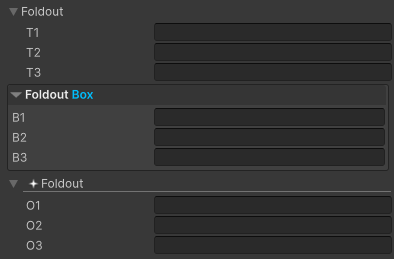
Example of foldout:
[LayoutStart("Foldout", ELayout.Foldout)]
public string t1;
public string t2;
public string t3;

[LayoutStart("Foldout <color=DeepSkyBlue>Box", ELayout.Foldout |  ELayout.TitleBox)]
public string b1;
public string b2;
public string b3;

[LayoutStart("<icon=LensFlare Gizmo/>Foldout", ELayout.Foldout | ELayout.TitleOut)]
public string o1;
public string o2;
public string o3;
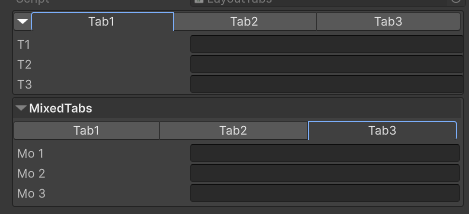
Example of tabs:
[LayoutStart("Tabs", ELayout.Tab)]
[LayoutStart("./Tab1")]
public string t1;
public string t2;
public string t3;

[LayoutStart("../Tab2")]
public string b1;
public string b2;
public string b3;

[LayoutStart("../Tab3")]
public string o1;
public string o2;
public string o3;

// Mix with title

[LayoutStart("MixedTabs", ELayout.Tab | ELayout.TitleBox | ELayout.Foldout)]
[LayoutStart("./Tab1")]
public string mt1;
public string mt2;
public string mt3;

[LayoutStart("../Tab2")]
public string mb1;
public string mb2;
public string mb3;

[LayoutStart("../Tab3")]
public string mo1;
public string mo2;
public string mo3;

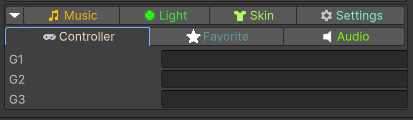
// Colors + Icons

[LayoutStart("Color Tab", ELayout.Tab)]

[LayoutStart("./<color=#FCBF07><icon=d_AudioClip Icon/>Music")]
public string m1;
public string m2;
public string m3;

[LayoutStart("../<color=#34F42B><icon=greenLight/>Light")]
public string l1;
public string l2;
public string l3;

[LayoutStart("../<color=#B0FC58><icon=d_Cloth Icon/>Skin")]
public string skin1;
public string skin2;
public string skin3;

[LayoutStart("../<color=Aquamarine><icon=d_Settings Icon/>Settings")]
public string s1;
public string s2;
public string s3;

[LayoutStart("../<color=Bisque><icon=d_UnityEditor.GameView/>Controller")]
public string g1;
public string g2;
public string g3;

[LayoutStart("../<color=CadetBlue><icon=star.png/>Favorite")]
public string f1;
public string f2;
public string f3;

[LayoutStart("../<color=Chartreuse><icon=AudioSource Gizmo/>Audio")]
public string a1;
public string a2;
public string a3;
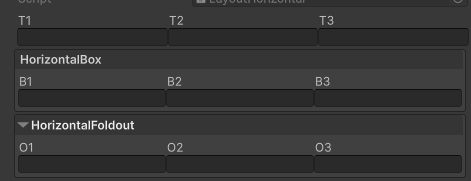
Example of horizental
[LayoutStart("Horizontal", ELayout.Horizontal)]
public string t1;
public string t2;
public string t3;

[LayoutStart("HorizontalBox", ELayout.Horizontal | ELayout.TitleBox)]
public string b1;
public string b2;
public string b3;

[LayoutStart("HorizontalFoldout", ELayout.Horizontal | ELayout.FoldoutBox)]
public string o1;
public string o2;
public string o3;
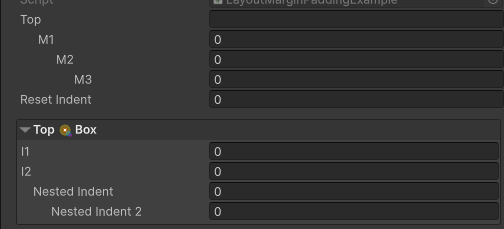
Use padding to make fields indent:
using SaintsField.Playa;

public string top;  // no padding
[LayoutStart("Indent", paddingLeft: 18)]  // Unity's default padding value is 18
public int m1;
[LayoutStart("./Indent", paddingLeft: 18)]  // subgroup will inherent the last padding
public int m2;
[LayoutStart("./Indent", paddingLeft: 18)]
public int m3;

[LayoutEnd]
public int resetIndent;

[Separator(10)]

[LayoutStart("Top<icon=LensFlare Icon/>Box", ELayout.FoldoutBox, paddingLeft: -4)]  // get rid of the default padding
public int i1;
public int i2;

[LayoutStart("./Continue", paddingLeft: 12)]
public int nestedIndent;

[LayoutStart("./Continue", paddingLeft: 18)]
public int nestedIndent2;
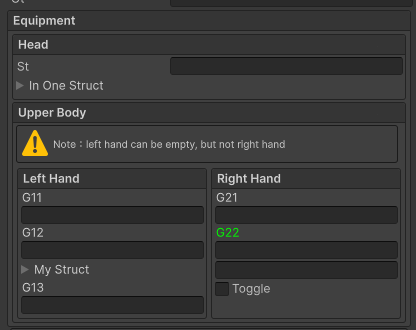
By combining Layout with Seperator/InfoBox, you can create some complex layout struct:
[LayoutStart("Equipment", ELayout.TitleBox | ELayout.Vertical)]
[LayoutStart("./Head", ELayout.TitleBox)]
public string st;
public MyStruct inOneStruct;
[LayoutEnd(".")]

[LayoutStart("./Upper Body", ELayout.TitleBox)]

[InfoBox("Note:left hand can be empty, but not right hand", EMessageType.Warning)]

[LayoutStart("./Horizontal", ELayout.Horizontal)]

[LayoutStart("./Left Hand", ELayout.TitleBox)]
public string g11;
public string g12;
public MyStruct myStruct;
public string g13;

[LayoutStart("../Right Hand", ELayout.TitleBox)]
public string g21;
[LabelText("<color=lime><label/>")]
public string g22;
[LabelText("quot; + nameof(g23))]
public string g23;

public bool toggle;
If titled box is too heavy, you can use Separator instead. See Separator section for more information
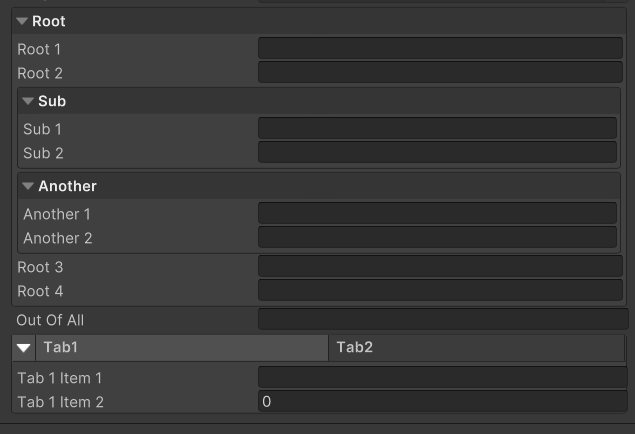
// Please ensure you already have SaintsEditor enabled in your project before trying this example
using SaintsField.Playa;

[LayoutStart("Root", ELayout.FoldoutBox)]
public string root1;
public string root2;

[LayoutStart("./Sub", ELayout.FoldoutBox)]  // equals "Root/Sub"
public string sub1;
public string sub2;
[LayoutEnd(".")]

[LayoutStart("./Another", ELayout.FoldoutBox)]  // equals "Root/Another"
public string another1;
public string another2;

[LayoutEnd(".")]  // equals "Root"
public string root3;  // this should still belong to "Root"
public string root4;

[LayoutEnd]  // this should close any existing group
public string outOfAll;

[LayoutStart("Tabs", ELayout.Tab | ELayout.Collapse)]
[LayoutStart("./Tab1")]
public string tab1Item1;
public int tab1Item2;
[LayoutEnd(".")]

[LayoutStart("./Tab2")]
public string tab2Item1;
public int tab2Item2;
example of using LayoutStart with LayoutEnd:
// Please ensure you already have SaintsEditor enabled in your project before trying this example
using SaintsField.Playa;

public string beforeGroup;

[LayoutStart("Group", ELayout.Background | ELayout.TitleOut)]
public string group1;
public string group2;  // starts from this will be automatically grouped into "Group"
public string group3;

[LayoutEnd("Group")]  // this will end the "Group"
public string afterGroup;
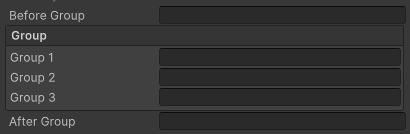
example of using new group name to stop grouping:
// Please ensure you already have SaintsEditor enabled in your project before trying this example
using SaintsField.Playa;

public string breakBefore;

[LayoutStart("break", ELayout.Background | ELayout.TitleOut)]
public string breakGroup1;
public string breakGroup2;

// this group will stop the grouping of "break"
[LayoutStart("breakIn", ELayout.Background | ELayout.TitleOut)]
public string breakIn1;
public string breakIn2;

[LayoutStart("break")]  // this will be grouped into "break", and also end the "breakIn" group
public string breakGroup3;
public string breakGroup4;

[LayoutEnd("break")]  // end, it will not be grouped
public string breakAfter;
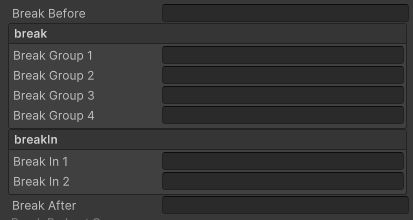
example of using keepGrouping: false to stop grouping, but keep the last one in group:
// Please ensure you already have SaintsEditor enabled in your project before trying this example
using SaintsField.Playa;

public string beforeGroupLast;

[LayoutStart("GroupLast")]
public string groupLast1;
public string groupLast2;
public string groupLast3;
[Layout("GroupLast", ELayout.Background | ELayout.TitleOut)]  // close this group, but be included
public string groupLast4;

public string afterGroupLast;
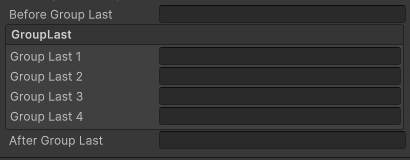
LabelField allows you to make a standard Unity field-like combo input.
Example of changing label:
[LayoutStart("LabelFieldSimple", ELayout.LabelField)]
[InfoBox("BOX!", EMessageType.None)]
[NoLabel] public int myI;

Example of enable/disable field. (See also PrefixToggle)
[LayoutStart("LabelFieldToggle", ELayout.LabelField)]
[LeftToggle] public bool enableMe;
[NoLabel, EnableIf(nameof(enableMe))] public int enableInt;

Example of combo input field
[LayoutStart("LabelSkill", ELayout.LabelField)]
[LayoutStart("./MyLabels")]  // we create a new sub layout to make multiple fields as "label"
public bool hasSkill;
[ShowIf(nameof(hasSkill)), NoLabel] public SkillName skill;

[LayoutStart("..")]  // close the "label" layout here
[ProgressBar(0, 100), NoLabel, EnableIf(nameof(hasSkill))] public int skillMp;
[PropRange(0, 100), EnableIf(nameof(hasSkill))] public float skillDamage;

// We can create more layout
[LayoutShowIf(nameof(skill), SkillName.Skill2)]
[LayoutStart("./My Other Fields", ELayout.Horizontal)]
[OptionsDropdown("A", "B", "C")]
public string level;
public string desc;